Tutorial 1 of 7
Your first incident deck in ten minutes
Beginner 10 min
Open the checkout incident template, press Run all, and read the dashboard, the ranked findings and the release gate. No account, nothing to install.
Opsdeck is a workbench for the moment something broke or is about to ship: you collect the evidence — CI logs, Kubernetes events, a trace, a query plan, an error — and Opsdeck sends each piece to the usefulweb tool that understands it. The results come back as one list of findings, a go/no-go gate, a timeline, actions and a report. Your deck is saved in this browser automatically.
1. Open a template
Choose File → New from template… and pick Checkout incident review. The deck contains five evidence items and one batch, all taken from the published examples of the tools:
- CI runs of the last week — eight runs from GitHub Actions, GitLab and Jenkins,
- Events in the shop namespace —
kubectl get events -o jsonwith a crash-looping checkout, - Trace of GET /account/orders — an OTLP trace with an N+1 query and a timeout,
- Orders list query (EXPLAIN ANALYZE) — a PostgreSQL plan with a disk sort,
- Error in the checkout log —
ECONNREFUSED 127.0.0.1:5432, - Errors collected from the logs — a batch with eight error lines.
The first time you open Opsdeck a small hint bar offers the templates. It never blocks the page — close it with the × button.
2. Run all
Press Run all in the top bar (or Ctrl+Shift+Enter). Opsdeck runs every analysis one after another; the status bar at the bottom says which tool is running, and Cancel run stops it. If the tool server is busy, Opsdeck waits and tries again by itself. Typing never waits for the network.
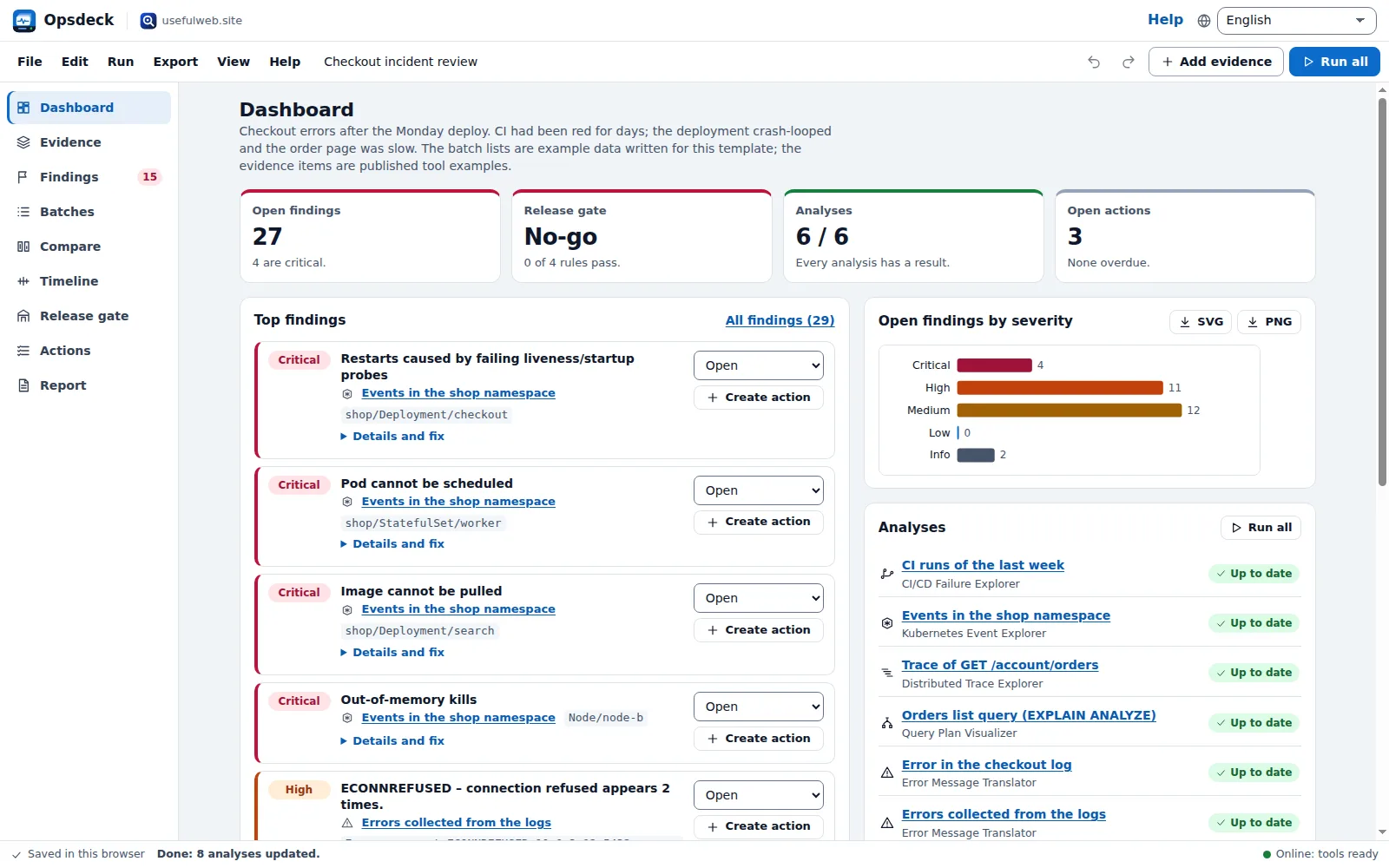
3. Read the dashboard
The Dashboard (press 1) shows four numbers: open findings (27 in this deck, 4 of them critical), the Release gate (No-go), how many analyses have a result, and open actions. Below are the Top findings, a chart of open findings by severity and the status of every analysis — Up to date, Outdated after you changed its text, or Not run yet.
4. Triage the findings
Open Findings (press 3). Every tool's result is translated into whole sentences and ranked: Restarts caused by failing liveness/startup probes from the Kubernetes events comes before Sort spilled to disk from the query plan. For each finding you can:
- open Details and fix for the tool's explanation and its suggested fix,
- set the status to Acknowledged, Resolved or Ignored — resolved and ignored findings stop counting in the gate,
- press Create action to turn it into a follow-up with a due date (see the tutorial on actions).
Filter by severity, status or source, or search the text. Export CSV downloads the list.
5. What next
- Paste your own evidence and see what Opsdeck sends.
- Set up a release gate for your next deploy.
- Compare scenarios and runs over time.
Every change is saved in this browser within a second; Ctrl+Z undoes it. File → Save writes a .opsdeck.json file you can open again anywhere.
Ready to try it?