Tutorial 4 of 7
Scenarios and comparisons over time
Intermediate 9 min
Run the same evidence with other options (x86_64 vs arm64, Berlin vs UTC), compare two analyses side by side, and follow metrics across runs.
Many ops questions are comparisons: is arm64 cheaper?, did the index help?, is CI better than last week? Opsdeck keeps the key metrics of every analysis, so you can compare them.
1. Scenario B: same text, other options
Open the template Lambda right-sizing: x86 vs arm64 and press Run all. The first item, checkout-api and image-resize, has Compare with scenario B switched on: scenario A uses x86_64, scenario B arm64, both on the same REPORT lines. Opsdeck runs the Serverless Performance Explorer twice.
Turn scenario B on for any item whose tool has options: a crontab in UTC instead of Europe/Berlin (see the DST item in Nightly jobs and the DST weekend), another misestimate threshold for a query plan, another namespace filter for events.
2. Compare side by side
Go to Compare (press 5). Choose the Kind, then A and B. For the Lambda example the table shows that only one metric differs: Cost per 1M invocations is 7.41 USD on x86_64 and 5.97 USD on arm64 — Better in B, −19.4 %. Cold starts, p95 and p99 stay the same, because the durations come from the same log lines.
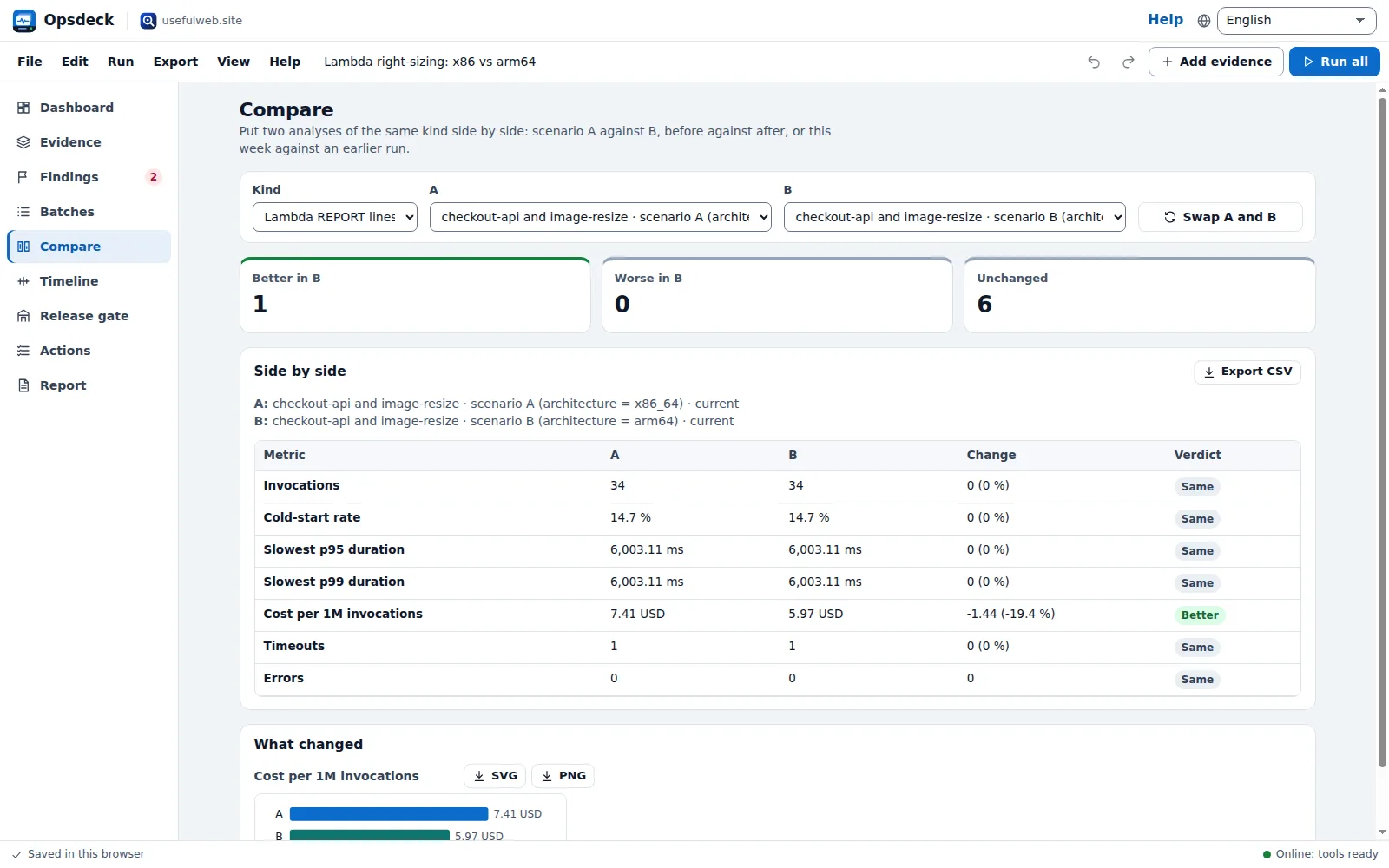
What changed draws a small chart for every metric that differs (with SVG and PNG export), and Export CSV saves the comparison.
3. Before and after
To compare two different texts — the plan before and after an index, last week's and this week's CI logs — add them as two evidence items of the same kind and pick one as A and the other as B. Opsdeck knows for every metric whether lower or higher is better.
4. Over time
Each run of an item stores its key metrics in the deck's history (up to 30 runs per item). Paste next week's logs into the same item and press Run: the earlier run stays available as a comparison source with its date, the item's Key metrics table gets a sparkline under Over time, and the dashboard lists the trend under Trends over time.
Ready to try it?